
How to Find the History of Websites Visited on Your Computer
Your web browser keeps a record of many websites you visit. This record, called browsing history, can help you return to a page you viewed earlier, check when you visited a site, or manage your privacy. The exact steps for viewing it depend on the browser you use.
What Is Browsing History?
Browsing history is a list of webpages opened in a browser. It may include page titles, website addresses, and the dates or times you visited them. Browsers usually store this information on your computer, though it may also be synced with other devices if you’re signed in and have syncing enabled.
Browsing history is not necessarily a complete record of everything done online. Private browsing, deleted history, browser settings, and the use of multiple browsers can all affect what appears in the list.
How to View Your Browsing History
Most browsers provide a history page or menu. You can usually open it with a keyboard shortcut:
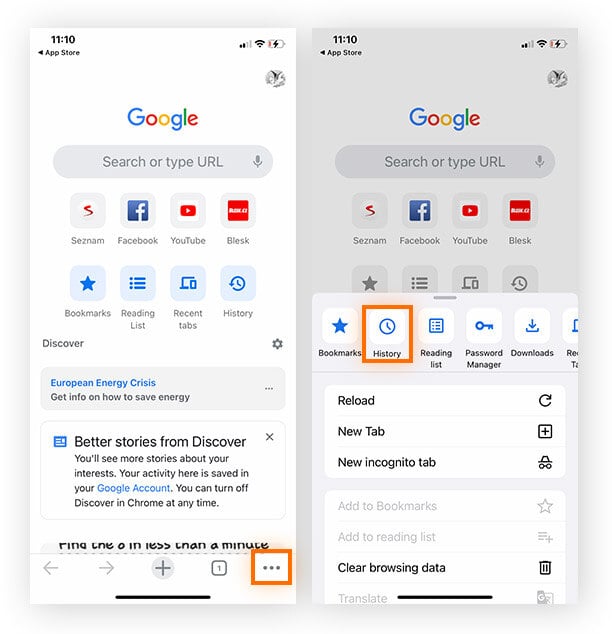
- Google Chrome: Press Ctrl+H on Windows or Linux, or Command+Y on a Mac. You can also open the menu and choose History.
- Microsoft Edge: Press Ctrl+H on Windows or Command+Y on a Mac, or open the menu and select History.
- Mozilla Firefox: Press Ctrl+H on Windows or Linux, or Command+Shift+H on a Mac. You can also open the menu and select History.
- Safari: Choose History from the menu bar, then select Show All History.
From the history page, you can often search for a site or page, open a previous visit, or remove selected entries. Browser menus and shortcuts may vary slightly by version.
Why a Website Might Not Appear
If you can’t find a page in your history, there are several possible reasons:
- You visited it in a private or incognito window.
- Your browsing history was cleared, either manually or automatically.
- You used a different browser, device, or browser profile.
- Your browser was set not to save history.
- The history is stored on another device and hasn’t synced.
Private browsing generally prevents the browser from saving visited pages in its regular history after the private session ends. It does not make activity invisible to every network, website, employer, school, or internet service provider.
Browsing History and Synced Devices
Some browsers can sync history across devices when you sign in to an account and enable synchronization. This can make it easier to find a page you opened on another computer or mobile device. It also means that people with access to the same account or device may be able to see synced information. Review your browser’s sync and account settings if you share devices or want to limit what is stored.
Managing or Clearing Your History
Browsers typically let you delete individual pages or clear history for a selected time range. Depending on your settings, you may also be able to clear cookies, cached files, saved passwords, and other browsing data. These are separate types of information, so deleting history does not always remove every trace of a visit from every location.
Before clearing data, check the options carefully. Removing cookies, for example, may sign you out of websites, while deleting saved passwords can make it harder to access accounts.
Protecting Your Privacy
If you use a shared computer, sign out of personal accounts when you’re finished and consider using a separate browser profile. Set a device passcode, review which information is synced, and avoid saving passwords on computers other people can access. For a private session, use your browser’s private or incognito mode—but remember that this mainly limits what is saved locally in the browser.
Your computer’s browsing history can be a useful way to retrace your online steps, but it is only one part of the picture. Knowing where to find it, how it is stored, and how to manage it can help you use your browser more effectively and make informed choices about your privacy.
8 Common Questions About Viewing and Managing Your Browsing History on Your Computer
- How do I find the History of websites visited on my computer?
- How far back can I see my browsing history?
- Can you see what websites were visited?
- How do I see websites visited in Windows 10?
- Why can’t I see my browsing history?
- How do I clean out my browsing history?
- How do I find my most visited websites?
- Is there a way to see all the websites you’ve visited?
How do I find the History of websites visited on my computer?
To find the websites you’ve visited, open the browser you used and go to its History menu or press Ctrl+H on Windows or Linux; on a Mac, try Command+Y in Chrome or Edge, or Command+Shift+H in Firefox. In Safari, choose History from the menu bar and select Show All History. You can search the history list by website name or page title, though private browsing sessions and history you’ve deleted usually won’t appear.
How far back can I see my browsing history?
How far back you can see your browsing history depends on your browser and its settings. Many browsers keep history until you delete it, while others may remove older entries automatically or limit how much is stored. If history syncing is enabled, you may also be able to see visits from other devices, depending on your account settings. Private or incognito browsing sessions generally don’t appear in your regular history after they’re closed, and deleted history usually can’t be restored through the browser.
Can you see what websites were visited?
Yes, you can usually see websites visited by opening your browser’s history. In Chrome, Edge, or Firefox, press Ctrl+H on Windows (or the browser’s equivalent shortcut on Mac); in Safari, choose History from the menu bar. The list may show page titles, addresses, and visit dates. However, it may not include pages opened in private or incognito mode, visits that were deleted, or activity recorded in another browser or profile.
How do I see websites visited in Windows 10?
To see websites visited on a Windows 10 computer, open the browser you used and view its browsing history. In Google Chrome or Microsoft Edge, press Ctrl+H; in Mozilla Firefox, press Ctrl+H as well. You can then search or browse the list of visited pages, which may show when each site was accessed. If you used more than one browser or profile, check each one. Private browsing, cleared history, or disabled syncing can mean some visits won’t appear.
Why can’t I see my browsing history?
You may not be able to see your browsing history because it was cleared, you browsed in a private or incognito window, or your browser is set not to save history. You may also be checking the wrong browser or profile, or history syncing may be turned off if you visited the site on another device. Check the browser’s History menu and account or sync settings; if the history was deleted or the private session ended, it usually can’t be restored from the browser.
How do I clean out my browsing history?
To clear your browsing history, open your web browser’s History or Privacy settings and choose the option to clear browsing data. Select the time range you want to remove—such as the last hour or all time—and make sure “Browsing history” is selected before confirming. The exact steps vary by browser, and you can choose whether to delete other data, such as cookies or cached files. Clearing history may remove useful saved records, and deleting cookies can sign you out of websites.
How do I find my most visited websites?
To find your most visited websites, open your browser’s history or new-tab page and look for a section labeled “Most visited,” “Frequently visited,” or “Top sites.” The exact location varies by browser, and some browsers don’t display a ranked list by default. You can also search your browsing history for a site or review your browser’s privacy and history settings for activity summaries. If history was cleared, wasn’t saved, or you used private browsing, those visits may not appear.
Is there a way to see all the websites you’ve visited?
You can see many of the websites you’ve visited in your browser’s history, usually by opening the History menu or pressing Ctrl+H on Windows or Linux, or Command+Y on a Mac (shortcuts vary by browser). However, there may not be a complete list: private or incognito sessions typically aren’t saved in regular history, and entries may be missing if history was cleared, disabled, or spread across different browsers or devices. If browser syncing is enabled, check the history on your other signed-in devices as well.