
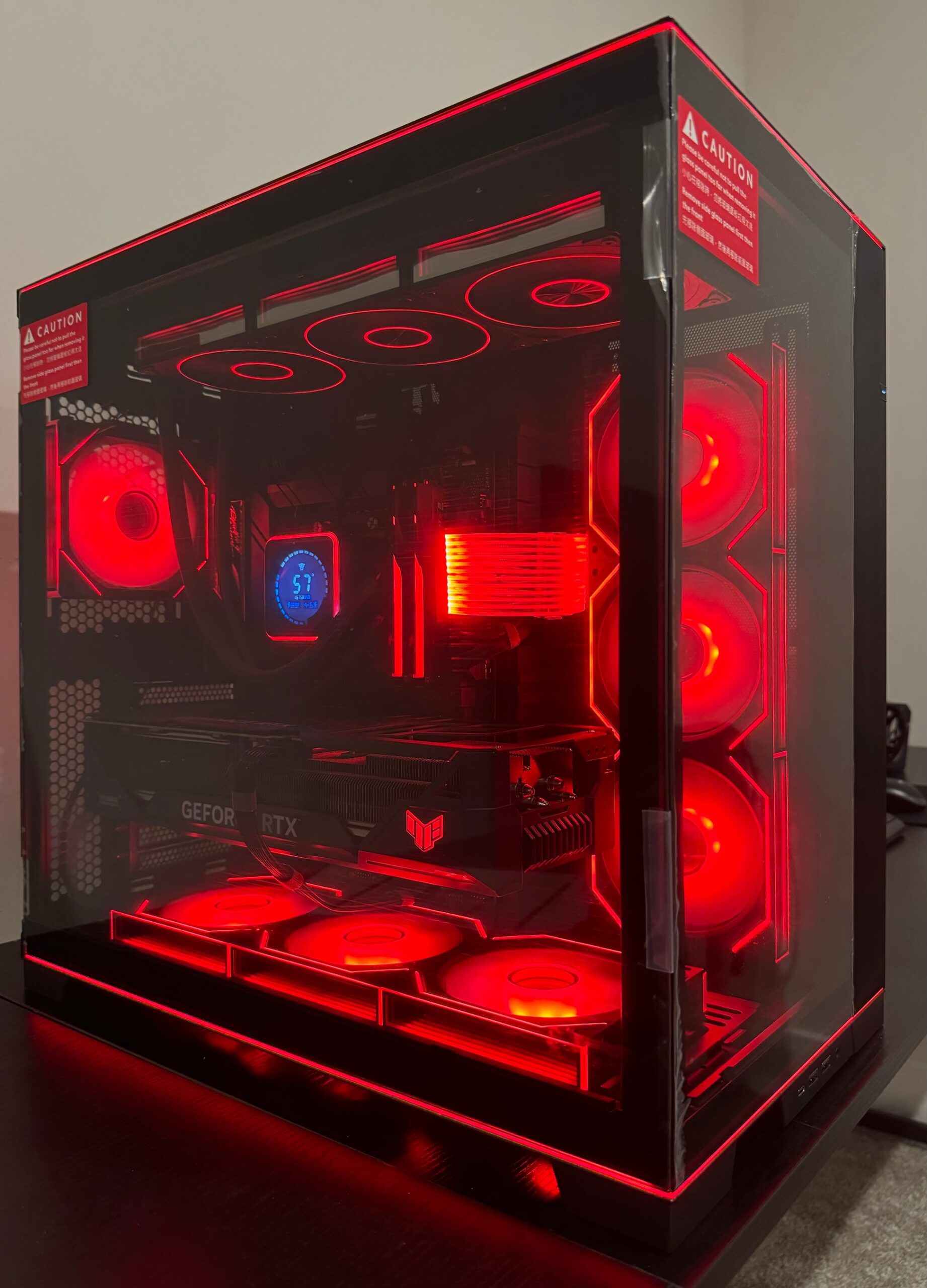
Custom Computers: A Guide to Building a PC That Fits Your Needs
A custom computer is a computer assembled from individually selected parts rather than purchased as a complete, preconfigured system. By choosing the processor, graphics card, memory, storage, case, and other components yourself, you can tailor a computer to your budget, preferred activities, and plans for future upgrades.
Custom computers are popular with gamers, creative professionals, hobbyists, and anyone who wants more control over how their system is built. They can also be a rewarding way to learn how computer hardware works.
Why Choose a Custom Computer?
The main advantage of a custom computer is choice. A prebuilt computer may include components that are more powerful than you need in one area and less capable than you want in another. Selecting parts individually lets you prioritize what matters most.
- Tailored performance: Choose components for gaming, video editing, software development, everyday tasks, or another specific purpose.
- Control over cost: Decide where to spend more and where a less expensive component will do the job.
- Upgrade flexibility: A well-planned system can make it easier to add memory, storage, or a new graphics card later.
- Component transparency: You know which parts are installed instead of relying on a broad product description.
- Personal style: Select a case, lighting, and accessories that suit your preferences.
Key Components
Before building a computer, it helps to understand the role of each major component.
Processor
The central processing unit, or CPU, handles instructions and calculations for the system. The right processor depends on your workload. Everyday browsing and office tasks generally need less processing power than demanding games, 3D work, or professional video editing.
Motherboard
The motherboard connects the computer’s components. It must be compatible with the chosen processor and should provide the connections and features you need, such as memory slots, storage connectors, networking, and USB ports.
Memory
Random access memory, or RAM, gives programs temporary space to work. Too little memory can make multitasking difficult, while having more than your applications require may not improve performance. Check the motherboard’s supported memory type and capacity before buying.
Graphics Card
A graphics processing unit, or GPU, produces the images displayed on the screen. Some processors include basic graphics capabilities, while demanding games and graphics-intensive applications may benefit from a dedicated graphics card.
Storage
Storage holds the operating system, applications, and files. Solid-state drives (SSDs) offer fast access and are a common choice for a system drive. Larger hard disk drives can provide additional space for files, although they are generally slower.
Power Supply
The power supply unit (PSU) provides electricity to the computer’s components. Choose a reputable unit with enough capacity for the system, including room for reasonable future upgrades. Avoid treating the power supply as an afterthought: reliability and appropriate connectors matter.
Case and Cooling
The case needs to fit the motherboard and other components, with enough room for the graphics card and cooling equipment. Good airflow helps keep temperatures under control. Depending on the parts and intended use, cooling may come from case fans, a CPU air cooler, or a liquid-cooling system.
Plan Before You Buy
Start by deciding what the computer will do. A system for web browsing and schoolwork has different requirements from one intended for high-resolution gaming or intensive creative work. Set a total budget, and remember to include the operating system, monitor, keyboard, mouse, and other accessories if you need them.
Next, check compatibility. The processor must match the motherboard’s socket and supported platform. The memory must be supported by the motherboard, and the case must have room for the motherboard, graphics card, power supply, and cooling components. Make sure the power supply has the connectors required by the parts you select.
It is also useful to think about noise, size, appearance, and future upgrades. A compact computer can save space but may limit component choices. A larger case may be easier to work in and offer more room for cooling and expansion.
Building Versus Buying
Building a computer yourself can provide greater control over the parts and the assembly process. It also takes time, research, and careful handling. Anyone new to PC building should read the component manuals, work slowly, and follow a trusted step-by-step guide.
A prebuilt computer may be a better choice if convenience, technical support, or a single warranty for the complete system is a priority. Some buyers also choose a middle ground: purchasing a prebuilt system and upgrading selected components later.
Basic Assembly and Setup
Most desktop computer builds follow a similar sequence: prepare the case, install the processor and memory on the motherboard, mount the motherboard, add the storage and power supply, and install the graphics card if needed. Then connect the power and front-panel cables, check the connections, and start the system.
After assembly, install or configure the operating system, update drivers and firmware as appropriate, and check that the components are recognized. Monitor temperatures and stability during initial use. If the computer does not start, turn it off and review the power connections and component installation rather than forcing anything into place.
Keeping a Custom Computer in Good Shape
Routine care can help a computer remain reliable. Keep air vents clear, remove dust carefully, and make sure fans can spin freely. Install software and security updates, back up important files, and pay attention to unusual heat, noise, or performance changes. Before replacing a part, confirm that the new component is compatible with the rest of the system.
A Computer Built Around You
A custom computer does not have to be the most expensive or powerful system available. Its value comes from choosing a balanced set of components that suits its purpose. With careful planning, a custom build can deliver the performance, flexibility, and features that matter most to its owner.
5 Benefits of Building a Custom PC
- Tailored to your needs
- Flexible component choices
- Easy to upgrade
- Control over your budget
- Personalized look and features
Disadvantages of Building a Custom PC
- Can be time-consuming to research and assemble.
- Parts may cost more than a prebuilt system.
- Compatibility issues can complicate the build.
- Troubleshooting and repairs may be your responsibility.
Tailored to your needs
A custom computer can be tailored to the way you work, play, and create. You can choose components that match your specific needs—such as a powerful graphics card for gaming, extra memory for demanding applications, or ample storage for large files—without paying for features you won’t use. This flexibility helps you build a system that fits both your priorities and your budget.
Flexible component choices
One of the biggest advantages of a custom computer is the freedom to choose each component. You can prioritize the parts that matter most—such as a powerful graphics card for gaming, extra memory for multitasking, or fast storage for creative projects—without paying for features you don’t need. This flexibility also makes it easier to match your computer to your budget and plan upgrades over time.
Easy to upgrade
Custom computers are easy to upgrade because their components are selected and installed individually. When you need more memory, additional storage, or better graphics performance, you can often replace or add the relevant part without buying an entirely new system. Choosing standard, compatible components and leaving room for future expansion can make upgrades simpler and help your computer keep pace with changing needs.
Control over your budget
One of the biggest advantages of a custom computer is control over your budget. You can choose where to invest—such as a faster processor or a more capable graphics card—and save on components that are less important for your needs. This flexibility makes it easier to build a system that fits your priorities without paying for features you won’t use.
Personalized look and features
A custom computer lets you choose a look and features that match your style and needs. Select a case size, color, lighting, and cooling setup, then add practical options such as extra USB ports, quiet fans, or room for more storage. The result is a computer that feels personal while still being designed for the way you use it.
Can be time-consuming to research and assemble.
Building a custom computer can take considerable time, especially for first-time builders. Researching compatible components, comparing prices, and choosing parts that fit your needs may take hours, and assembly requires patience and careful attention to detail. Troubleshooting setup issues can add even more time before the computer is ready to use.
Parts may cost more than a prebuilt system.
Parts for a custom computer may cost more than a comparable prebuilt system. Manufacturers often buy components in bulk and can offer lower prices, while individual buyers may pay retail prices for each part. You may also need to budget separately for items such as an operating system, assembly tools, or shipping, which can raise the total cost.
Compatibility issues can complicate the build.
Compatibility issues can make building a custom computer more complicated than expected. Components must work together—for example, the processor must match the motherboard, the memory must be supported, and the case must have room for the graphics card and cooling system. A mismatch can delay the build, require returning parts, or lead to extra costs, so it’s important to check specifications carefully before purchasing.
Troubleshooting and repairs may be your responsibility.
With a custom computer, troubleshooting and repairs may be your responsibility. If a component fails or the system stops working properly, you may need to identify the cause, check compatibility, contact the individual manufacturers, and arrange repairs or replacements yourself. This can take time and may be challenging without technical experience, especially when several parts could be involved.