
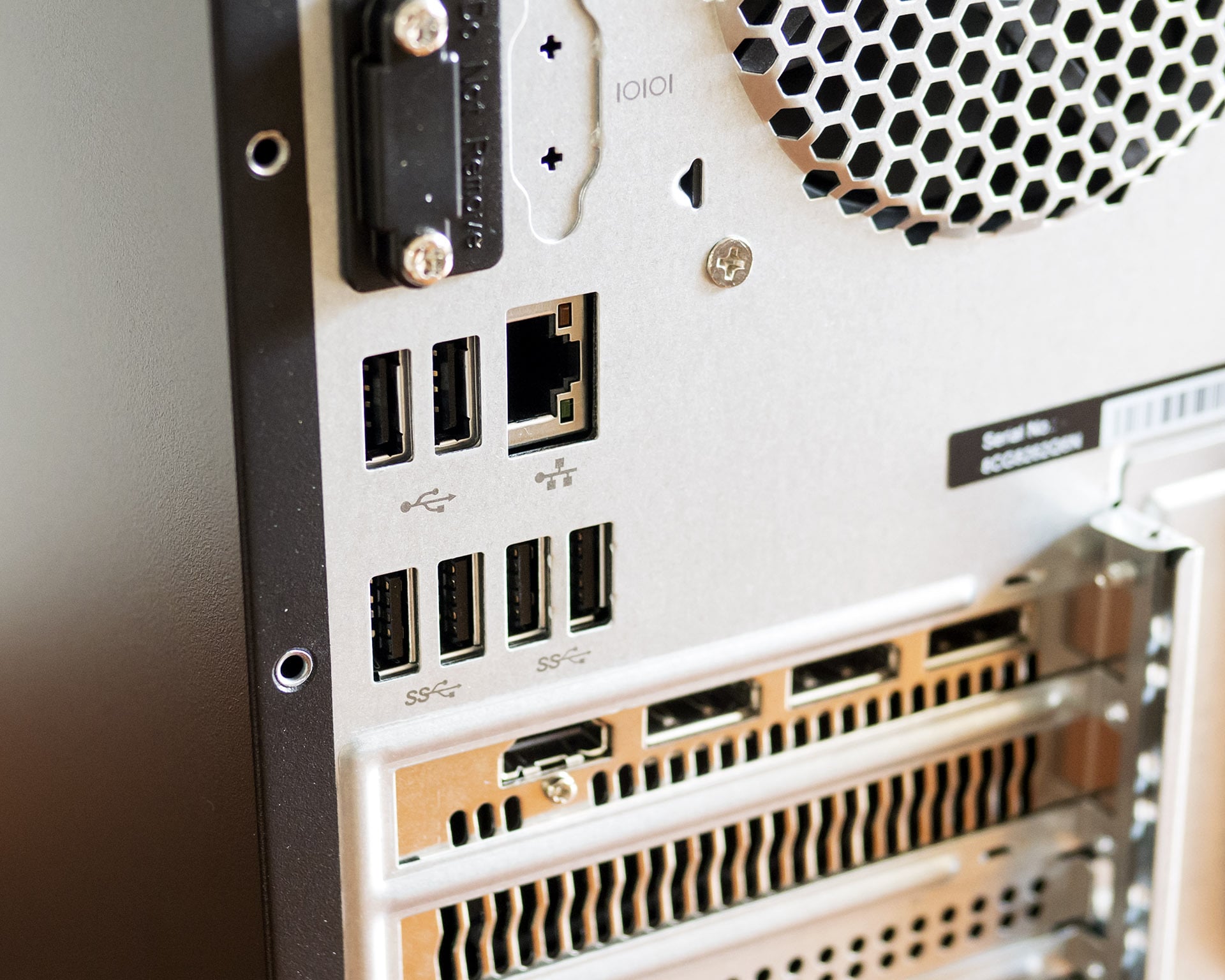
HP Pavilion Gaming PC: What to Know Before You Buy
The HP Pavilion Gaming PC is a family of computers designed for people who want to play PC games without stepping up to a premium gaming system. The name has been used for both desktop towers and laptops, and specifications vary considerably by model and year. That makes it important to check the exact configuration—not just the Pavilion Gaming name—when comparing systems.
What Is an HP Pavilion Gaming PC?
HP’s Pavilion Gaming line sits between everyday Pavilion computers and higher-end gaming systems. Depending on the model, a Pavilion Gaming PC may include a dedicated graphics card, a gaming-focused processor, and features such as customizable lighting or additional cooling. The goal is to offer a practical entry point for gaming, school, work, and entertainment.
Some models are compact gaming laptops, while others are desktop towers. A laptop is easier to carry and includes its own display, keyboard, and battery. A desktop is less portable but can be easier to service or upgrade, depending on its design.
Performance Depends on the Configuration
There is no single set of specifications for every HP Pavilion Gaming PC. Configurations have been offered with different processors, graphics cards, memory capacities, storage options, and displays. Two computers with similar names may deliver noticeably different performance.
For gaming, the graphics card is especially important. It largely determines which games the system can run comfortably and what visual settings or resolutions are practical. The processor, memory, and cooling also affect the overall experience. Before purchasing a used or older model, look up its full model number and confirm its specifications.
Gaming and Everyday Use
A Pavilion Gaming PC can serve as an all-purpose computer as well as a gaming machine. It may be suitable for web browsing, streaming, schoolwork, office applications, photo editing, and a range of PC games. Performance in newer or more demanding games depends on the specific hardware, so check independent benchmarks for the exact configuration whenever possible.
For a laptop, also consider the screen’s resolution and refresh rate, keyboard comfort, battery life, fan noise, and weight. Gaming laptops typically perform best when plugged in, and battery life during gaming is often limited. For a desktop, remember to factor in the cost of a monitor, keyboard, mouse, and speakers or headset if they are not included.
Upgrade and Maintenance Considerations
Desktop Pavilion Gaming models may allow upgrades to components such as memory or storage, but compatibility and available space differ by model. Some laptops offer limited upgrade options, and components such as the processor or graphics chip are often not replaceable. Check the service manual or manufacturer documentation before planning an upgrade.
When buying a used system, inspect its condition and ask about its maintenance history. Check that the cooling fans work properly, look for signs of overheating, and verify that the computer includes its correct power adapter. For laptops, examine the screen, keyboard, hinges, and battery condition. For desktops, confirm that the power supply can support the installed components.
How to Choose the Right Model
- Identify your games: Compare the computer’s graphics card and processor with the recommended requirements for the games you want to play.
- Check the exact model: Pavilion Gaming specifications vary, so confirm the full product number and configuration.
- Choose the right format: Pick a laptop for portability or a desktop if you prefer a larger display and potentially easier servicing.
- Review memory and storage: Make sure the system has enough capacity for your games and everyday applications.
- Compare the total cost: Include accessories, warranty coverage, and any upgrades you may need.
Is an HP Pavilion Gaming PC Worth Considering?
An HP Pavilion Gaming PC may be a good fit for someone seeking a versatile computer for casual or moderate gaming, particularly when the price matches the hardware. The Pavilion Gaming name alone does not guarantee a particular level of performance, however. Comparing the exact specifications, condition, and price is the best way to decide whether a specific model is right for you.
6 Essential Tips to Optimize Your HP Pavilion Gaming PC Performance
- Keep vents clear for better airflow.
- Update graphics drivers regularly.
- Clean dust from fans and vents.
- Check model compatibility before upgrading parts.
- Monitor temperatures during demanding games.
- Use HP Support Assistant for system updates.
Keep vents clear for better airflow.
Keep the vents on your HP Pavilion Gaming PC clear to help air circulate and carry heat away from internal components. Place the computer on a hard, flat surface rather than a bed, blanket, or carpet, and avoid blocking vents with walls, furniture, or other objects. Regularly remove dust from the vents using a soft brush or compressed air, following HP’s cleaning guidance. Good airflow can help reduce overheating and keep your PC running reliably during gaming.
Update graphics drivers regularly.
Keep your HP Pavilion Gaming PC’s graphics drivers up to date to help games run smoothly and maintain compatibility with newer releases. Driver updates from NVIDIA, AMD, or Intel may also fix bugs, improve performance, and address security issues. Check which graphics card your specific Pavilion model uses, then download updates through the manufacturer’s official software or support website. Before installing, save your work and follow the installer’s instructions.
Clean dust from fans and vents.
Clean dust from your HP Pavilion Gaming PC’s fans and vents regularly to help maintain airflow and prevent overheating. Turn off the computer, unplug it, and let it cool before gently removing dust with compressed air or a soft brush. Avoid forcing the fans to spin, and follow HP’s care instructions for your specific model. Keeping vents clear can help the system cool more effectively and run reliably during gaming and everyday use.
Check model compatibility before upgrading parts.
Before upgrading an HP Pavilion Gaming PC, check that each new part is compatible with your exact model. Pavilion systems can differ in motherboard, case size, power supply, cooling, and available connections, which may limit your choices. Look up the full model number and consult HP’s product specifications or service documentation to confirm that the part will fit and work properly.
Monitor temperatures during demanding games.
Monitor your HP Pavilion Gaming PC’s temperatures during demanding games to help spot overheating before it affects performance or causes unexpected shutdowns. Use a reputable hardware-monitoring tool to check CPU and GPU temperatures while playing, and compare the readings with the limits recommended for your specific components. If temperatures stay unusually high, make sure the vents are clear, place the computer on a hard, well-ventilated surface, and clean dust from the fans when appropriate.
Use HP Support Assistant for system updates.
Use HP Support Assistant to help keep your HP Pavilion Gaming PC up to date. The app can check for HP driver updates, firmware, and other recommended software for your specific system, which may improve compatibility and reliability. Open HP Support Assistant, check for available updates, and follow the on-screen instructions. Save your work before installing updates, and restart your PC if prompted.