
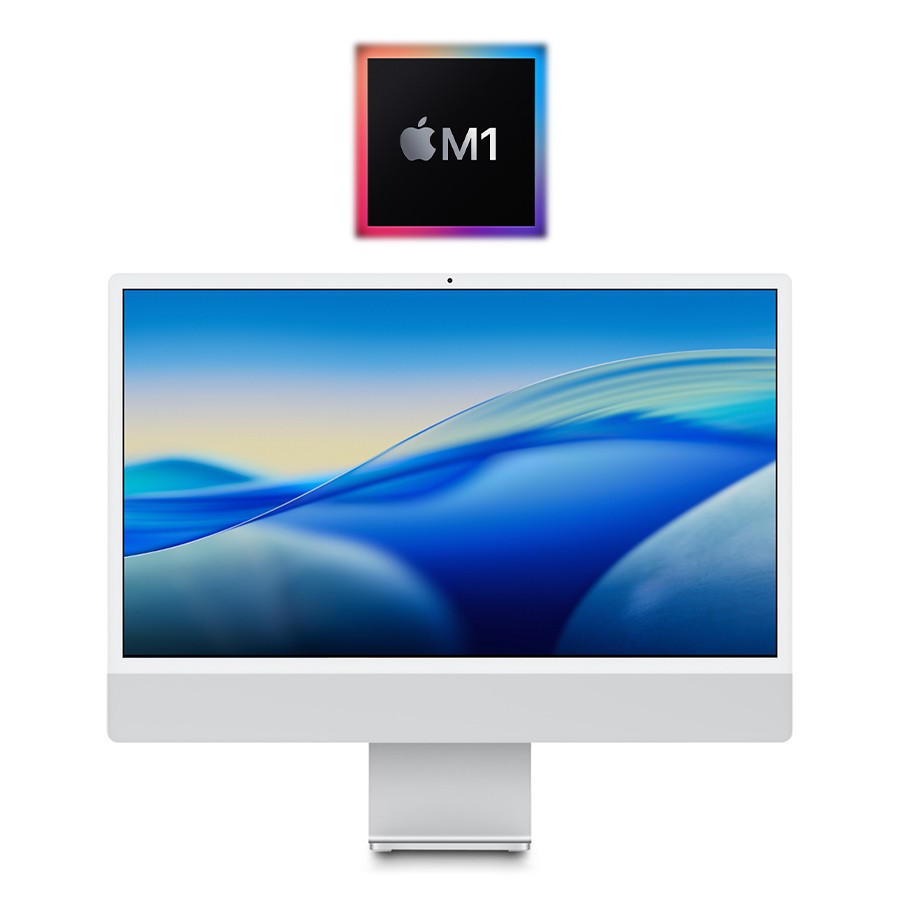
Apple iMac M1: A Colorful New Chapter for the Desktop Mac
Introduced in 2021, the Apple iMac with M1 brought Apple’s first-generation Apple silicon to its all-in-one desktop computer. It paired a slim, colorful design with a sharp 24-inch-class display, strong everyday performance, and a collection of built-in features for video calls and entertainment.
A complete redesign
The M1 iMac was a striking departure from earlier models. Its thin aluminum body came in a range of colors, including blue, green, pink, and silver, with additional colors available on some configurations. The design was made possible in part by the M1 chip, which combines the processor, graphics, memory, and other functions into a single system-on-a-chip.
The computer’s footprint was smaller than that of the previous 21.5-inch iMac, despite its larger screen. Apple also moved many of the ports to the back of the display, keeping the sides of the computer clean and uncluttered.
Display and performance
The iMac features a 23.5-inch Retina display with a resolution of 4480 by 2520 pixels—marketed as a 24-inch, 4.5K display. It supports the wide P3 color gamut and True Tone, which adjusts the display’s color temperature to suit the surrounding light. The screen is well suited to browsing, office work, photo editing, and watching video.
Apple’s M1 chip includes an eight-core CPU and an integrated graphics processor. Depending on the configuration, the graphics processor has seven or eight cores. For everyday tasks, the M1 iMac feels responsive, and it can also handle many creative workloads, such as editing photos and producing music. More demanding professional projects may benefit from a newer or higher-performance Mac.
The original configurations included 8GB or 16GB of unified memory. Because this memory is built into the system, it cannot be upgraded after purchase. Choosing a configuration with enough memory and storage is therefore important for anyone considering a used or refurbished model.
Camera, sound, and connectivity
Video calls are a particular strength of the M1 iMac. It has a 1080p FaceTime HD camera, along with three studio-quality microphones designed to make voices clearer and reduce background noise. Its six-speaker sound system supports spatial audio with Dolby Atmos content, providing fuller sound than many built-in computer speakers.
Port selection varies by model. The base configuration has two Thunderbolt/USB 4 ports, while higher configurations add two USB 3 ports. The iMac also supports Wi-Fi 6 and Bluetooth 5.0. On certain models, an Ethernet port is built into the power adapter. Some configurations include a Magic Keyboard with Touch ID, making it possible to unlock the Mac and authorize purchases with a fingerprint.
Who is the M1 iMac for?
The M1 iMac is designed for people who want a straightforward desktop setup without a separate tower, monitor, webcam, and speakers. It is a good fit for home offices, students, families, and general creative work. Its bright display, compact design, and integrated features make it especially appealing when desk space and simplicity matter.
Its main limitations are its fixed memory and storage, relatively modest port selection, and support for only one external display. Buyers who need more room for upgrades, multiple external monitors, or specialized professional performance may prefer a different Mac.
A lasting place in the iMac story
The M1 iMac marked a significant moment in the evolution of Apple’s desktop computers: it combined the company’s transition to Apple silicon with a major redesign of the iMac itself. Apple later introduced newer iMac models with subsequent generations of its chips, but the M1 version remains an important example of how processor design, display, and computer body can be brought together in a single machine.
9 Essential Tips for Getting the Most Out of Your M1 iMac
- Choose memory and storage carefully; they aren’t user-upgradable.
- Check the port count
- Use the 24-inch 4.5K display for sharp text and photos.
- Check whether your configuration includes Touch ID on the keyboard.
- Connect one external display; M1 iMac supports up to one.
- Use the headphone jack on the side for wired audio.
- Keep large files on an external drive to save internal storage.
- Make sure your apps support Apple silicon for the best performance.
- Use AirDrop or iCloud to move files between Apple devices.
Choose memory and storage carefully; they aren’t user-upgradable.
When choosing an M1 iMac, think carefully about memory and storage before you buy: both are built into the computer and can’t be upgraded later. Select enough memory for the apps and tasks you expect to use, and choose storage that can comfortably hold your files, photos, and projects. External drives and cloud storage can add space, but they can’t replace having enough built-in memory for demanding work.
Check the port count
Before choosing an M1 iMac, check the port count for the specific configuration you’re considering. The base model has two Thunderbolt/USB 4 ports, while higher-end configurations add two USB 3 ports. Since the iMac has no ports on its sides, think about the accessories you’ll connect—such as external drives, cameras, or card readers—and whether you may need a USB-C hub.
Use the 24-inch 4.5K display for sharp text and photos.
The 24-inch 4.5K Retina display on the M1 iMac makes text look crisp and photos appear detailed and vibrant. Its high resolution is especially useful for reading, editing images, and viewing multiple windows, while wide P3 color support helps bring compatible photos to life.
Check whether your configuration includes Touch ID on the keyboard.
When choosing an M1 iMac, check whether the included Magic Keyboard has Touch ID. This feature lets you unlock your Mac, approve purchases, and authenticate supported apps with a fingerprint. Touch ID is not included with every configuration, so confirm the keyboard details before buying—especially if you’re considering a used or refurbished model.
Connect one external display; M1 iMac supports up to one.
The M1 iMac supports one external display, in addition to its built-in screen. Connect a compatible monitor to a Thunderbolt/USB 4 port; the iMac can drive an external display at up to 6K resolution and 60 Hz. If your monitor uses a different connection, such as HDMI, you may need a compatible adapter.
Use the headphone jack on the side for wired audio.
The Apple iMac M1 includes a 3.5 mm headphone jack on the side, making it easy to connect wired headphones, speakers, or other compatible audio gear. Plugging in a wired device can be handy for private listening, clearer audio during calls, or use with equipment that doesn’t support Bluetooth. Because the jack is on the side, it’s also convenient to reach without moving the iMac.
Keep large files on an external drive to save internal storage.
To save internal storage on your Apple iMac M1, keep large files—such as video projects, photo libraries, and archived documents—on an external drive. Connect a compatible drive through the iMac’s USB or Thunderbolt ports, then move or save files there to free up space for apps and everyday work. Choose a drive with enough capacity, and keep a backup of important files in case the external drive is lost or damaged.
Make sure your apps support Apple silicon for the best performance.
For the best performance on your M1 iMac, use apps that are built for Apple silicon. These apps run natively on the M1 chip and can take full advantage of its speed and efficiency. Many Intel-based apps also work through Apple’s Rosetta 2 translation technology, but they may not perform as smoothly or efficiently. Check an app’s system requirements or developer website to confirm whether it supports Apple silicon, and install updates when available.
Use AirDrop or iCloud to move files between Apple devices.
Use AirDrop or iCloud to move files between your iMac M1 and other Apple devices. AirDrop is a quick way to send files directly to a nearby iPhone, iPad, or Mac, while iCloud keeps supported files and folders synced across devices signed in to the same Apple Account. Use AirDrop for an occasional transfer and iCloud when you want your files to stay accessible and up to date across your devices.