
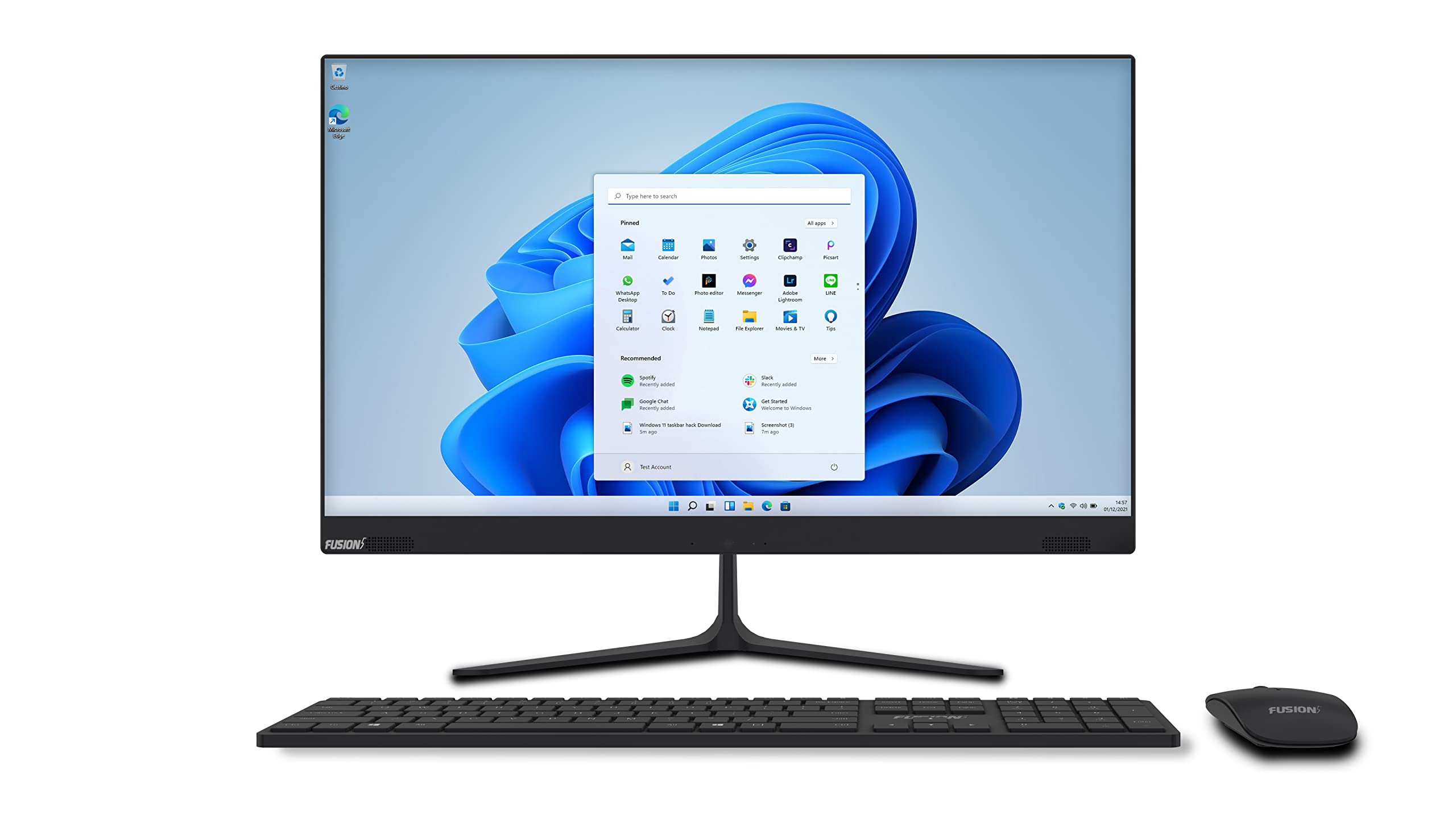
All-in-One Desktop Computers: A Complete Guide
An all-in-one desktop computer combines the computer’s main components and display in a single unit. Instead of connecting a separate tower to a monitor, you get a streamlined setup with the screen, processor, memory, storage, and other hardware housed together. A keyboard and mouse are usually included or sold separately.
All-in-one PCs can be a practical choice for home offices, classrooms, reception areas, and shared family spaces. They save desk space and reduce cable clutter, but their compact design also comes with trade-offs. Understanding the benefits and limitations can help you decide whether one is right for you.
How an All-in-One Computer Works
In a traditional desktop setup, the computer’s components sit in a separate case, often called a tower, and connect to an external monitor. An all-in-one computer places most of those components behind or inside the display. Some models use an external power adapter, while others include speakers, a webcam, and microphones built into the screen.
Like other computers, all-in-one models vary widely in performance. Some are designed for everyday tasks such as browsing, video calls, and document editing. Others have faster processors, more memory, and graphics hardware suited to demanding creative work.
Benefits of an All-in-One Desktop
- Saves desk space: With no separate tower, an all-in-one can leave more room for paperwork, accessories, or other equipment.
- Fewer cables: The display and computer are combined, which can make setup and cable management simpler.
- Clean appearance: A single-screen design can create a tidy, uncluttered workspace.
- Simple setup: Most models are ready to use after connecting power and setting up the included or compatible keyboard and mouse.
- Built-in features: Many include a webcam, speakers, and microphones, reducing the need for separate accessories.
Potential Drawbacks
- Limited upgrades: Some models allow memory or storage upgrades, but many components are difficult or impossible to replace. Check the specifications before buying.
- Repair complexity: Because the computer and display are integrated, servicing one part may require opening the entire unit.
- Less flexibility: A separate monitor can be reused when you replace a desktop tower. With an all-in-one, the screen and computer are generally part of the same purchase.
- Performance trade-offs: Compact designs may have less room for powerful cooling systems or high-performance graphics hardware than larger desktop towers.
- Display failure can be costly: If the screen needs repair, the computer may be difficult to use until it is fixed, depending on the model’s available display connections.
What to Look for When Buying
Processor
The processor affects how quickly a computer handles everyday tasks and demanding applications. For web browsing, email, streaming, and basic office work, a modern entry-level or midrange processor may be sufficient. For photo editing, software development, or heavier multitasking, consider a more capable processor.
Memory
Memory, also called RAM, helps the computer run multiple programs at once. More memory can make multitasking smoother, especially when working with large files or several applications. Since memory may not be upgradeable in every all-in-one, check whether it is replaceable and choose an amount that suits your expected use.
Storage
Solid-state drives (SSDs) generally load programs and files faster than traditional hard drives. Consider the drive’s capacity as well as its type. If you keep large photo, video, or project libraries, you may need more internal storage or an external drive.
Display Size and Quality
Choose a screen size that fits your workspace and viewing distance. Also consider resolution, brightness, viewing angles, and whether the display has features you need, such as touchscreen support. If you spend long hours at the computer, a comfortable screen can make a noticeable difference.
Ports and Connectivity
Check for the connections you use, such as USB-A, USB-C, HDMI, an Ethernet port, and an audio jack. Wireless connectivity is also important: review support for current Wi-Fi and Bluetooth standards if you rely on wireless networking and accessories. Port selection varies by model, and some all-in-ones provide fewer connections than a desktop tower.
Webcam, Speakers, and Accessories
Built-in webcams and speakers can keep a workspace simple, but their quality varies. If you use video calls frequently or need high-quality audio, look for reviews that assess these features. Confirm whether the computer includes a keyboard and mouse and whether they are wired or wireless.
Who Should Consider an All-in-One?
An all-in-one desktop may be a good fit if you want a straightforward computer for general home or office use and value a neat, space-saving setup. It can also suit environments where a computer needs to be easy to install and maintain, such as a front desk or shared workspace.
A traditional desktop tower may be a better choice if you want to upgrade components regularly, need high-end graphics performance, or want to replace the monitor and computer independently. A laptop may be preferable if portability is a priority.
How to Choose the Right Model
Start by listing the tasks the computer needs to handle. Everyday browsing and office work usually require different hardware than video editing, gaming, or professional design. Next, set a budget and compare complete systems—not just processor names. Display quality, memory, storage, ports, warranty coverage, and upgrade options all affect long-term value.
Before purchasing, check the manufacturer’s specifications for upgrade limits and read recent reviews focused on performance, screen quality, noise, and repairability. A model that meets your needs today and offers enough capacity for the years ahead is often a better choice than one selected on appearance alone.
Final Thoughts
An all-in-one desktop computer brings the display and computer together in a compact, convenient package. Its tidy design and simple setup make it appealing for many homes and workplaces. The main trade-offs are reduced flexibility and potentially limited upgrade options. By comparing performance, display quality, connectivity, and serviceability, you can find an all-in-one that suits your workspace and the way you use a computer.
All-in-One Desktop Computers: Top FAQs on Choosing the Best PC and Brand
- How do I choose the best all-in-one computer?
- Which is the best brand for all-in-one desktop?
- Which brand all-in-one PC is best?
- Are all in one computers as good as desktops?
- Which company is best for all in one PC?
How do I choose the best all-in-one computer?
To choose the best all-in-one computer, start by matching its performance to your needs: everyday browsing and office work require less power than video editing, design, or gaming. Compare the processor, memory, and SSD storage, and choose a screen size and resolution that feel comfortable for your workspace. Check that it has the ports and wireless connectivity you need, along with a webcam and speakers that suit your calls and media use. Because many all-in-one models are difficult to upgrade, review their upgrade options, warranty, and repair support before buying. Finally, compare independent reviews and prices to find a model that offers the right balance of features and value.
Which is the best brand for all-in-one desktop?
There’s no single best brand for every all-in-one desktop computer; the right choice depends on your budget, preferred operating system, and how you plan to use it. Apple’s iMac is a popular option for macOS users, while Dell, HP, and Lenovo offer Windows models across a range of prices and features. Compare screen quality, performance, ports, upgrade options, warranty, and customer support to find the best fit for your needs.
Which brand all-in-one PC is best?
The best all-in-one PC brand depends on your budget, intended use, and preferred features. Apple’s iMac is known for its polished design and macOS experience, while Dell, HP, and Lenovo offer models across a range of prices and configurations. Rather than choosing by brand alone, compare specific models for processor performance, memory, storage, display quality, ports, upgrade options, warranty, and customer support. The right choice is the one that best fits your needs and budget.
Are all in one computers as good as desktops?
All-in-one computers are desktop computers, but they combine the computer and monitor in one unit. They can be just as good as traditional tower desktops for everyday tasks like browsing, office work, and video calls, and they save space with fewer cables. However, tower desktops often offer more performance for the price, better cooling, and easier upgrades or repairs. The best choice depends on your needs: choose an all-in-one for a tidy, simple setup, or a tower desktop for greater flexibility and power.
Which company is best for all in one PC?
There isn’t one best company for every all-in-one PC buyer; the right choice depends on your budget, performance needs, and preferred operating system. Apple’s iMac is a popular option for macOS users, while Dell, HP, and Lenovo offer models across a range of prices and configurations. Compare specific models for processor, memory, display quality, ports, upgrade options, warranty, and customer support, since features can vary significantly within each brand.