
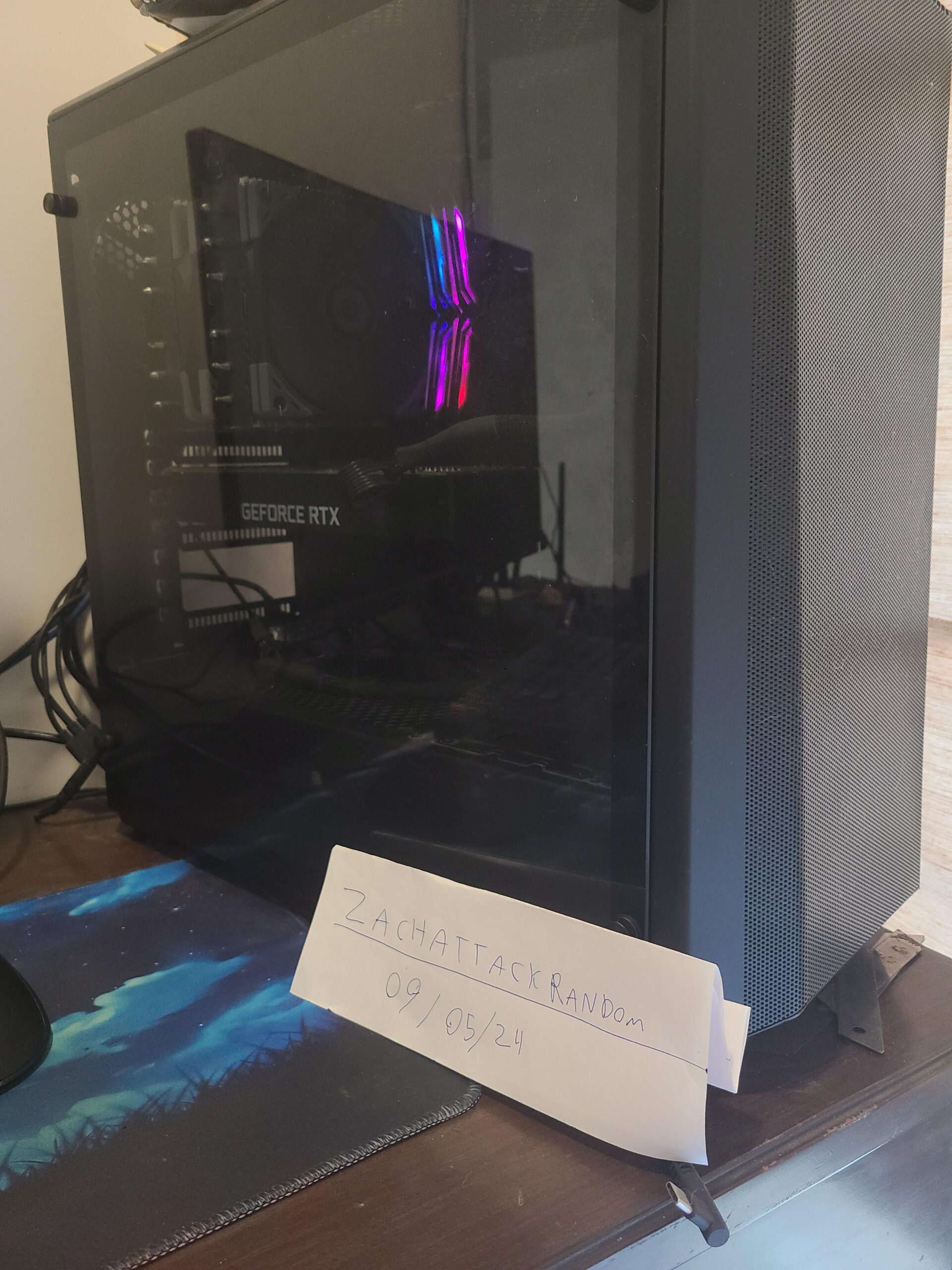
Buying a Second-Hand Computer: What to Know Before You Buy
A second-hand computer can be a practical way to get the features you need for less than the cost of a new machine. Used computers are often suitable for everyday tasks such as browsing the web, writing documents, attending video calls, and streaming media. The key is to check the computer’s condition and specifications before you buy.
Why Buy a Second-Hand Computer?
The main advantage is price. A used desktop or laptop may offer more memory, storage, or processing power than a new computer in the same price range. Buying used can also extend the life of a working device and reduce electronic waste.
However, a low price does not always mean good value. Older computers may be slow, have worn-out batteries, or lack support for current software. Consider both the purchase price and any repairs or upgrades the computer may need.
Choose a Computer That Fits Your Needs
Start by deciding what you plan to do with the computer. Basic tasks generally require less power than gaming, video editing, or other demanding work. A suitable machine should meet the requirements of the programs you intend to use.
- Processor: Check the processor model and generation, not just its advertised speed. Newer processors are generally better equipped to run current software.
- Memory: At least 8 GB of RAM is a reasonable target for many everyday uses. More memory can help with multitasking and demanding applications.
- Storage: A solid-state drive (SSD) usually makes a computer feel faster than a traditional hard disk drive (HDD). Check the drive’s capacity and available storage.
- Operating system: Confirm that the computer can run a supported operating system and receive security updates. Check the software requirements before buying.
- Screen and ports: For a laptop, inspect the display and keyboard. For any computer, make sure it has the ports and wireless features you need.
Inspect the Computer’s Condition
Whenever possible, see the computer in person and test it before paying. Look for cracks, dents, loose hinges, damaged ports, missing keys, or signs of liquid damage. Turn the device on and check that the screen, keyboard, trackpad or mouse, speakers, and Wi-Fi work properly.
For a laptop, ask about battery life. Batteries lose capacity over time, so an older laptop may need to stay plugged in or require a replacement battery. For a desktop, check whether the power cable and any necessary accessories are included.
Ask About the Computer’s History
Ask the seller for the computer’s model number, age, repair history, and reason for selling. If available, request the original receipt or documentation. A clear answer about the device’s history can help you judge its condition and value.
Before completing the purchase, make sure the computer has been reset and is no longer linked to another person’s account. The previous owner should remove passwords, activation locks, and device-management restrictions. Do not buy a computer that cannot be set up in your own account.
Buy From a Reputable Seller
Second-hand computers are sold by individuals, electronics retailers, and online marketplaces. A retailer that tests and refurbishes devices may charge more than a private seller, but may also offer a return period or limited warranty. Read the terms carefully so you know what is covered.
When buying from an individual, use a safe payment method and meet in a public place if the transaction is in person. Be cautious of listings with vague descriptions, unusually low prices, or requests to pay through an unfamiliar service.
Compare the Total Cost
Include the cost of possible upgrades and accessories when comparing prices. A computer that needs a new battery, charger, storage drive, or operating system may not be a bargain after those expenses are added. Compare the used price with the cost of a new or professionally refurbished model that meets the same needs.
Protect Your Data and Privacy
After buying a used computer, reset it and install a fresh, supported operating system if possible. Install security updates before signing in to important accounts. Use a reputable security tool, create a strong password, and avoid restoring files or software you cannot verify.
Final Thoughts
A second-hand computer can be a smart purchase when its specifications, condition, and price match your needs. Check the hardware, confirm that the device can be securely set up, and understand the seller’s return or warranty policy. A little research before buying can help you find a reliable computer and avoid unexpected costs.
Buying a Used Computer: 6 Frequently Asked Questions
- What should I check before buying a second-hand computer?
- How much should I pay for a used computer?
- Is it safe to buy a second-hand computer?
- How can I tell whether a used computer will meet my needs?
- Should I buy a used laptop or a refurbished computer?
- What should I do before using a second-hand computer?
What should I check before buying a second-hand computer?
Before buying a second-hand computer, check that its processor, memory, and storage meet your needs, and confirm that it can run a currently supported operating system. Inspect the screen, keyboard, ports, charger, and case for damage, and test Wi-Fi, audio, and other important features. For a laptop, ask about battery life. Also check the computer’s age and repair history, make sure the previous owner has removed account locks and management restrictions, and review the seller’s return policy or warranty.
How much should I pay for a used computer?
The right price for a used computer depends on its age, condition, specifications, and included accessories. Compare the model with similar listings, and check the cost of a new or refurbished computer with comparable features. As a general rule, avoid paying a premium for an older machine, especially if it needs a new battery, repairs, or upgrades. Confirm that it can run a supported operating system, and factor in any warranty or return option when deciding whether the asking price is fair.
Is it safe to buy a second-hand computer?
Yes, buying a second-hand computer can be safe if you check its condition and take steps to protect your data. Buy from a reputable seller when possible, test the computer’s hardware, confirm that it isn’t locked to someone else’s account, and ask about any return policy or warranty. After purchase, reset the computer, install a supported operating system and security updates, and change any passwords before using it.
How can I tell whether a used computer will meet my needs?
To tell whether a used computer will meet your needs, start by listing the tasks and programs you plan to use, then compare their requirements with the computer’s processor, memory, storage, and operating system. For everyday browsing, email, and documents, a model with at least 8 GB of RAM and an SSD is a practical starting point; demanding work like gaming or video editing may require more capable hardware. Check that the operating system still receives security updates, and test the screen, keyboard, ports, Wi-Fi, and battery (if it’s a laptop) before buying.
Should I buy a used laptop or a refurbished computer?
Whether you should buy a used laptop or a refurbished computer depends on your budget, needs, and comfort with risk. A used laptop from a private seller may cost less, but its condition, battery life, and repair history can be harder to verify. A refurbished computer is typically inspected, tested, and restored by a retailer or specialist, and may include a limited warranty or return period, though it can cost more. Compare the specifications and total price, check what protection the seller offers, and choose a device that can run supported software and handle the tasks you need.
What should I do before using a second-hand computer?
Before using a second-hand computer, make sure the previous owner has removed their accounts, passwords, and any device or activation locks. Back up any files you need, then reset the computer or reinstall a supported operating system from a trusted source. Install all security updates, check that the antivirus and firewall are enabled, and test the keyboard, screen, ports, Wi-Fi, and battery or power supply. Avoid signing in to personal accounts until the computer is updated and you’re confident it’s secure.