
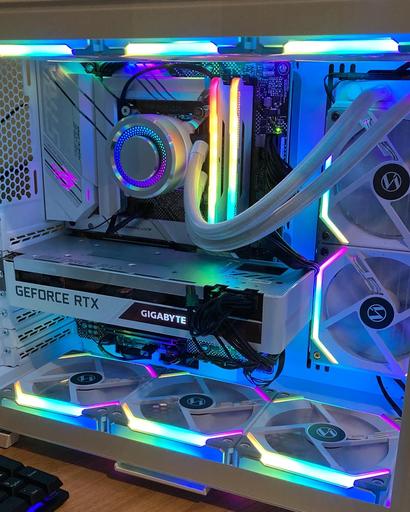
What Is a High-End PC?
A high-end PC is a desktop computer built with powerful components for demanding tasks. It can handle modern games, creative software, complex simulations, and intensive multitasking more smoothly than a typical home or office computer. The exact meaning of “high-end” changes over time as new hardware becomes available, but the goal remains the same: strong performance, reliable operation, and room to expand.
Key Components
The processor, or CPU, manages instructions and general computing tasks. A high-end system often uses a recent, fast processor with multiple cores, which can help with workloads such as video editing, software development, and 3D rendering.
The graphics card, or GPU, is especially important for gaming, animation, visual effects, and other graphics-heavy work. Powerful GPUs can render detailed scenes at high resolutions and accelerate certain creative and scientific applications.
Memory, usually called RAM, allows a computer to keep active programs and data readily available. More memory can make it easier to work with large projects, run several applications at once, or manage demanding professional workloads. Fast solid-state storage helps the operating system and applications load quickly, while larger drives provide space for games, media, and project files.
Other parts matter, too. A suitable motherboard connects the components and provides room for future upgrades. A dependable power supply delivers stable power, and an effective cooling system helps control heat. A well-designed case can improve airflow and make the system easier to maintain.
What Can a High-End PC Do?
- Gaming: Run demanding games with high visual settings, smooth frame rates, and support for high-resolution displays.
- Content creation: Edit high-resolution video, work with large photo collections, produce music, or create 3D models.
- Professional work: Handle software development, engineering applications, data analysis, and other resource-intensive tasks.
- Multitasking: Keep multiple demanding applications running at the same time with fewer slowdowns.
Choosing the Right System
“High-end” does not mean the same thing for every buyer. A gaming PC may prioritize a powerful GPU and a fast display, while a workstation for video production may need a strong CPU, ample memory, and substantial storage. The best configuration depends on the programs being used, the desired performance, and the available budget.
It is also worth considering the full cost of a setup. A powerful computer may need a high-quality monitor, keyboard, mouse, speakers, and reliable backup storage. Electricity use, cooling, and occasional upgrades can add to the long-term expense. Comparing complete systems—not just one headline component—can help avoid paying for performance that will go unused.
Building for Performance and Longevity
A high-end PC should be balanced. Pairing a top-tier graphics card with insufficient memory or slow storage, for example, can limit the experience. Good airflow, a reliable power supply, and components that meet the system’s actual workload can be just as important as peak specifications.
High-end computers can also offer flexibility. Many desktop systems allow users to add memory, storage, or expansion cards over time. Choosing compatible, well-supported components can make future upgrades easier and help the computer remain useful for longer.
Conclusion
A high-end PC is more than a collection of expensive parts. It is a computer configured to deliver strong performance for specific, demanding tasks. By matching components to real needs and considering cooling, power, compatibility, and future upgrades, buyers can choose a system that performs well without overspending.
9 Essential Tips for Building and Optimizing a High-End PC
- Choose a CPU that matches your workload.
- Prioritize a powerful GPU for gaming.
- Use 32 GB or more of fast RAM.
- Pick a quality motherboard with room to upgrade.
- Install a fast NVMe SSD.
- Choose a reliable, efficient power supply.
- Use strong cooling to control temperatures.
- Select a case with excellent airflow.
- Update drivers and monitor system performance.
Choose a CPU that matches your workload.
Choose a CPU that matches your workload rather than simply buying the most expensive model. For gaming, prioritize strong per-core performance; for video editing, 3D rendering, software development, and other heavily threaded tasks, a CPU with more cores may save time. Check the requirements of the programs you use, and balance the processor with your graphics card, memory, and cooling system so the rest of your PC can keep up.
Prioritize a powerful GPU for gaming.
For a high-end gaming PC, prioritize a powerful graphics card (GPU), since it has the biggest impact on visual quality and gaming performance in many modern titles. A stronger GPU can deliver higher frame rates, support higher resolutions, and handle advanced graphics settings more comfortably. Choose one that fits your monitor and the games you play, while making sure the rest of the system—especially the CPU and power supply—can keep up.
Use 32 GB or more of fast RAM.
For a high-end PC, 32 GB or more of fast RAM can help keep demanding games and creative applications running smoothly, especially when multitasking or working with large files. Faster memory may improve performance in some systems, but compatibility with the processor and motherboard matters, so check the supported memory type and speeds before buying.
Pick a quality motherboard with room to upgrade.
Choose a quality motherboard that supports your processor, memory, and other components while leaving room for future upgrades. Check its expansion slots, storage connections, memory capacity, and compatibility with newer hardware so you can add more RAM, storage, or expansion cards later without replacing the entire PC. A reliable motherboard may cost more upfront, but it can make your high-end system easier to maintain and upgrade over time.
Install a fast NVMe SSD.
Install a fast NVMe SSD to help your high-end PC start up quickly, launch applications faster, and load large files with less waiting. NVMe drives connect through the PCIe interface and can offer much higher transfer speeds than traditional hard drives and many SATA SSDs. For the best results, choose a drive with enough capacity for your operating system, frequently used programs, and active projects, and make sure it is compatible with your motherboard.
Choose a reliable, efficient power supply.
Choose a reliable, efficient power supply to provide stable electricity to your high-end PC’s components. Select a model with enough wattage for your processor and graphics card, while leaving some headroom for future upgrades. Look for a reputable brand, strong reviews, and an efficiency certification such as 80 PLUS. A quality power supply can help your system run reliably, reduce wasted energy, and protect your investment.
Use strong cooling to control temperatures.
Use strong cooling to keep your high-end PC’s components at safe operating temperatures, especially during demanding gaming or creative workloads. Choose a quality air or liquid cooling system that suits your processor, case, and performance needs, and make sure the case has good airflow. Keeping fans and filters clean also helps prevent overheating, reduce unnecessary noise, and maintain reliable performance over time.
Select a case with excellent airflow.
Choose a PC case with excellent airflow to help keep high-end components cool during demanding tasks like gaming, video editing, and rendering. Look for a design with mesh panels, well-placed fan mounts, and enough room for your graphics card and cooling system. Good airflow can help reduce heat-related performance throttling, support quieter operation, and extend the life of your components.
Update drivers and monitor system performance.
Keep your high-end PC running smoothly by updating drivers regularly, especially for the graphics card, motherboard, and other key components. Updates can improve performance, fix bugs, and address compatibility or security issues. It’s also helpful to monitor system temperatures, usage, and fan speeds with trusted software. Watching these metrics can reveal overheating, unusual resource demands, or other problems early, helping you maintain reliable performance during gaming and demanding workloads.